
Writing & reviewReview & save
Writing & review
Review and Save
Inspect typeset diffs and bibliography checks, distinguish Accept/Apply/Commit/Sync, iterate or reject safely and edit LaTeX inline.
Review typeset changes#
When an agent finishes editing its isolated Git worktree, Papilot compiles the paper and opens the Review workspace (Review, Split or Chat on desktop; Review and Chat tabs on phones):
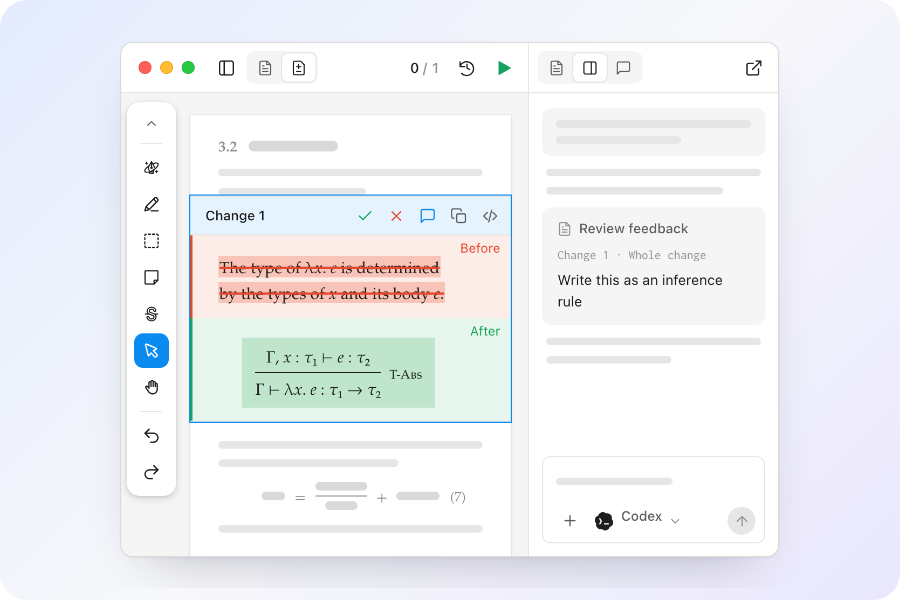
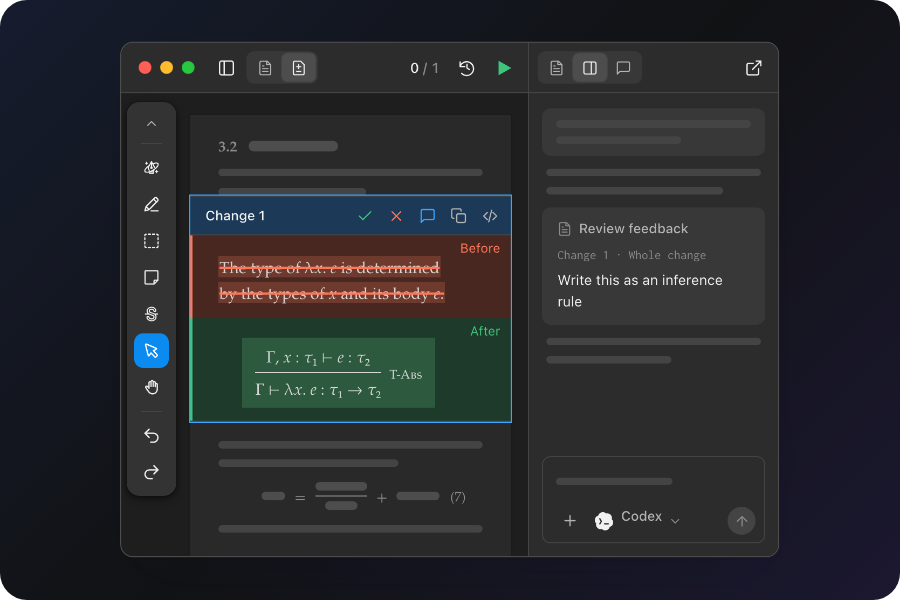
- Decide one by one or in a batch: changes render directly on the full PDF with a ChangeMap scrollbar, and each change card shows the typeset Before and After side by side (or stacked on narrow screens) with an expandable LaTeX source diff below it; multi-edit blocks expose numbered chips (
1,2, …) so you can accept or reject individual edits. Accept all and Reject all in the review toolbar act only on undecided changes — existing decisions and comments stay untouched, and one Undo (⌘Z/Ctrl+Z) reverses the batch. - Side-by-side whole-page comparison: select the two-page button in the review toolbar on desktop windows (≥ 720 px) to view the old PDF on the left and the new PDF on the right, paired by content, with red/green highlights and a numbered change bar between the pages; click a bar (or change) to shade its lines on both pages and open its accept/reject/comment/LaTeX controls, and click again or press
Escapeto deselect. Papilot remembers your chosen layout while keeping page, contents, zoom and find controls synchronized. - Bibliography verification: added or modified
.bibentries are reviewed whole (never split mid-entry) and checked online against doi.org, arXiv, Crossref and DBLP (Verified, Differs from the record, Not verified or Could not check; toggle in Settings → Review preferences → Check references online, or audit the whole paper anytime under Research Tools → Reference check). Accept all skips entries with warnings so you confirm them explicitly or mark I checked it myself. - Indirect changes and note alternatives: enable Settings → Review preferences → Track indirect changes when you want Papilot to run extra builds that detect downstream effects (such as redefined macros or renumbered equations, shown as Affects N places). Enable Prepare alternatives for PDF notes when you want the agent to draft selectable alternative phrasings inline on the change card.
Accept, Apply, Commit and Sync#
Keeping track of where an edit lives prevents accidental changes to a shared paper:
| Action | Task worktree | Your paper files on disk | Local Git commit history | Remote Git / Overleaf |
|---|---|---|---|---|
| 1. Agent finishes turn | Edited | Untouched | Untouched | Untouched |
2. Click Accept on a change | Marked accepted in this task | Still untouched | Untouched | Untouched |
3. Click Apply (Apply to workspace) | Task marked applied | Updated on disk | Uncommitted working-tree edits | Syncs to Overleaf (~1 s if linked); Git remote untouched |
4. Click Commit (Commit to manuscript) | Task marked committed | Updated on disk | New commit on current branch (only this task's accepted edits) | Syncs to Overleaf (~1 s if linked); Git remote still untouched |
5. Version Management → Sync (or Push) | Unchanged | Unchanged | Pulls/merges incoming if needed | Pushed to Git remote (e.g., GitHub) |
Concrete example: suppose you ask Codex to rewrite Section 3 (3 changes), accept two changes and reject one. Until you click Apply or Commit, section3.tex in your paper folder has zero edits. Clicking Apply writes just the two accepted changes into section3.tex so your external editor or Overleaf coauthors see them immediately while leaving your own unrelated unstaged edits in intro.tex alone. Clicking Commit instead writes those two accepted changes and creates a clean Git commit for them — still leaving your unrelated intro.tex edits uncommitted and without pushing to GitHub until you choose Sync or Push in Git & Version History.
Revise or reject a change#
When a proposed edit is not right yet, choose between iterating in the same task and rejecting the change:
- Ask for another round (
Comment→Send feedback): click Comment on the change card, write what should be different (for example, "Write this as the T-Abs inference rule instead of prose"), and click Send feedback (or send a message in Chat). You can also add a follow-up note directly on the After PDF strip. If you reject every change in a round, Send feedback also appears so you can tell the agent why and get a fresh attempt in the same task. - What happens when you click
Reject(0.12.1+):- The rejected edit is excluded from your paper; the review shows the clean original passage.
- Any manuscript annotations linked to that edit automatically return to
Manuscript(with a card-flight indicator beside Manuscript in the sidebar) so your original note is never lost when an agent's edit misses the mark. - In Chat and on the change card, the returned note dims: click its muted note icon if you want to pull it back into the current task, or press
⌘Z/Ctrl+Zin Review to undo the rejection and bring both the change and its notes back together. - You can also click the checked note icon on any annotation in Chat or on a change card to manually return an unaddressed note to Manuscript (
⌘Z/Ctrl+Zundoes a manual return) and send it to a new task later.
Edit LaTeX source yourself#
You never have to ask an agent for a one-word tweak or a bracket fix:
- Inside a task review: expand LaTeX beneath any change card and click the pencil (
Edit) beside the filename. Edit the full passage with LaTeX syntax highlighting, then click the checkmark (Save and update PDF,⌘Enter/Ctrl+Enter). Papilot updates the task worktree and recompiles the before-and-after PDF review immediately — without calling an agent. Close with × to keep an unsent draft in your browser, or click the curved arrow (Reset to saved source) to discard your draft. - Directly on the manuscript: choose the Edit source (
E) tool on the Manuscript PDF and click any passage, or click the filename under Manuscript in the sidebar (Files) to open any tracked text file in the Source tab beside the PDF. Saving recompiles the manuscript automatically.