
Collaborate & syncPhone & tablet
Collaborate & sync
Phone and Tablet Access
Open your host workspace privately over Tailscale or SSH to read the PDF, leave notes and accept changes away from your desk.
How phone and tablet access works#
Papilot's server binds strictly to 127.0.0.1 on your host computer (Mac, Windows or Linux). Your host keeps your .tex files, Git worktrees, TeX distribution and agent sign-ins; your phone or tablet opens the same workspace in Mobile Safari or Chrome over a private Tailscale connection (or an SSH tunnel).
Tasks, drafts, PDF notes and in-progress reviews live on the host, so you can start a revision at your desk, walk away, and read the typeset diff, add a follow-up note or click Accept from your phone.
Set up private Tailscale access#
- Install Tailscale on both the computer running Papilot and your phone or tablet, signed in to the same tailnet.
- Find your host's MagicDNS name (for example
macbook.tailnet-name.ts.net) and your Tailscale login email (tailscale statusor the Tailscale app). - Configure Papilot with the exact HTTPS origin and owner login, then expose
127.0.0.1:7274privately on your tailnet withtailscale serve:
export PAPILOT_PUBLIC_ORIGIN=https://your-host.your-tailnet.ts.net:8443
export PAPILOT_TAILSCALE_LOGIN=you@example.com
papilot service install   # macOS launchd service (or start papilot with these variables set)
tailscale serve --bg --https=8443 http://127.0.0.1:7274
- Open
https://your-host.your-tailnet.ts.net:8443on your phone or tablet.
Security and network notes#
- Never enable Tailscale Funnel: requests arriving on this endpoint act with your workspace permissions. Papilot verifies the
Host,Originand Tailscale identity headers from the local Tailscale proxy and refuses public Funnel traffic. - Tailnet HTTP fallback: if Let's Encrypt certificate provisioning is blocked on your network, you can serve HTTP over the encrypted tailnet (
PAPILOT_PUBLIC_ORIGIN=http://your-host.your-tailnet.ts.net:8081andtailscale serve --bg --http=8081 http://127.0.0.1:7274). Core reading, notes and review work normally; browser APIs that require a secure HTTPS context (such as push notifications and one-tap clipboard buttons) require HTTPS. - macOS background sleep:
papilot service installruns undercaffeinate -iafter user login so the Mac does not idle-sleep mid-task (papilot service stopstops it; logs are in~/.papilot/service.logandservice.error.log). - SSH port forwarding (laptop-to-workstation without Tailscale): run
ssh -N -L 7274:127.0.0.1:7274 user@your-hoston your client machine and openhttp://localhost:7274.
Reading and reviewing on a phone or tablet#
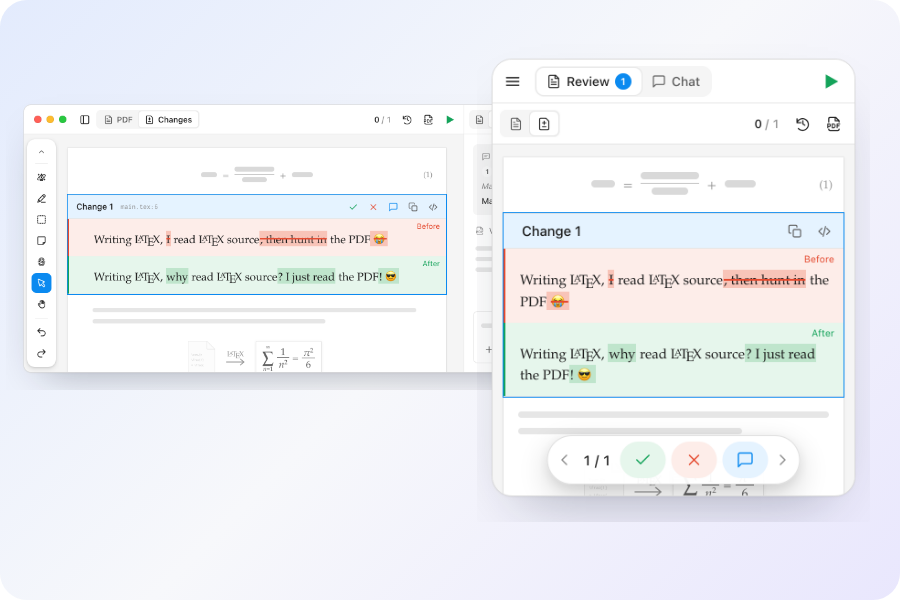
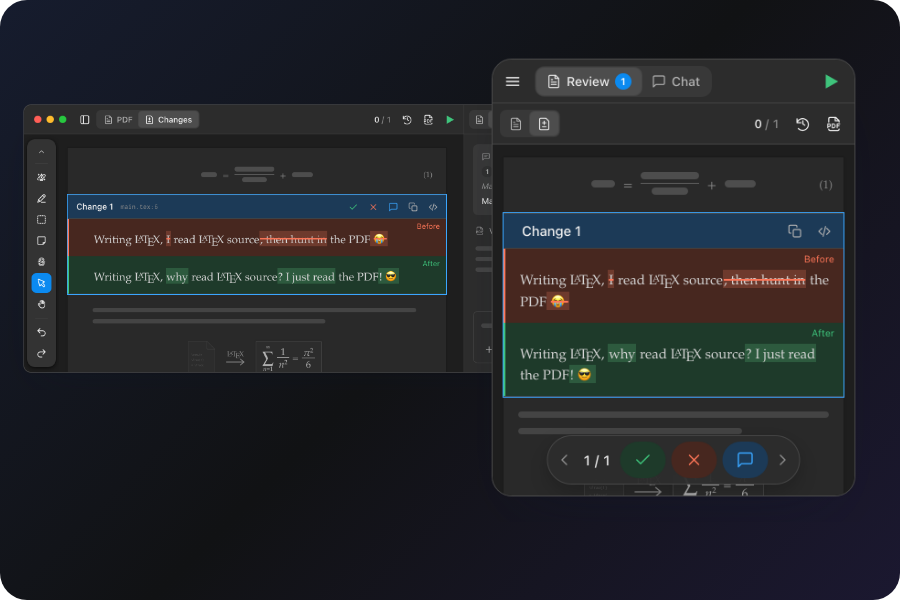
- Focused tabs: on narrow screens, Manuscript switches between PDF, Notes and Git in the top bar, while a task switches between Review and Chat.
- Thumb-friendly review controls: the current change's Accept, Reject and Comment bar sits at the bottom of the screen, menus open as bottom sheets, and Crop margins (or Fit in Review options) trims page margins so body text fills the screen width.
- Touch keyboards and notifications: on touch keyboards, Enter inserts a newline so you do not submit half-written instructions accidentally—tap the send arrow to send. Enable Settings → Notifications over HTTPS to get push alerts when an agent asks a question or finishes a PDF review.
- Verification note: mobile layouts, bottom sheets, touch selection and Tailscale origin checks are covered by automated browser checks (Chromium and WebKit at 320 px and 390 px); some real-device iOS/Android virtual-keyboard and gesture edge cases remain under ongoing hardware validation.