
Writing & reviewAnnotate & read
Writing & review
Annotate and Read
Use PDF marking tools (Q/T/M/P/D/E/V), organize My notes, peek at citations, bookmark reading anchors and run read-only /ai-review.
Mark what should change on the PDF#
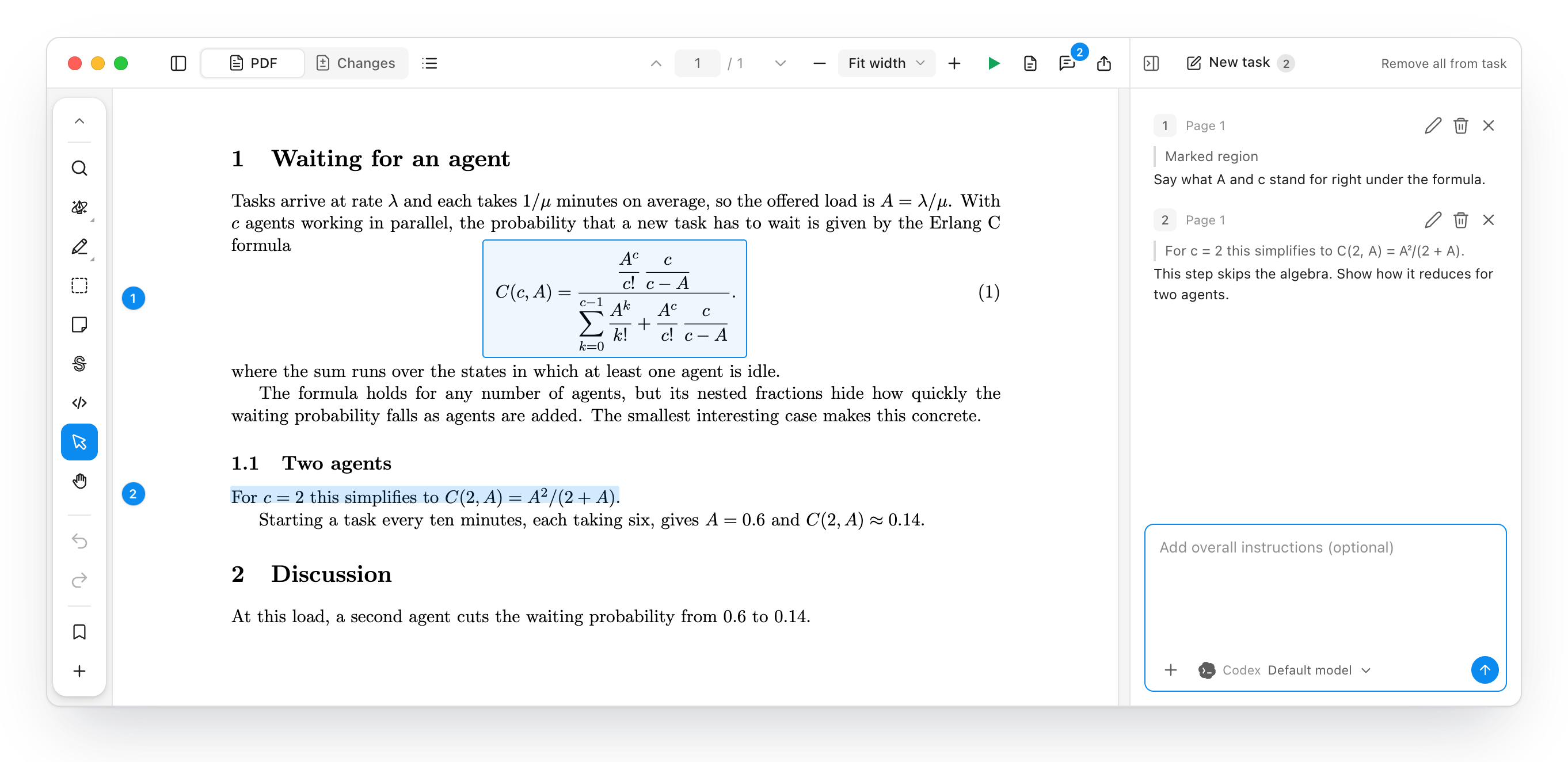
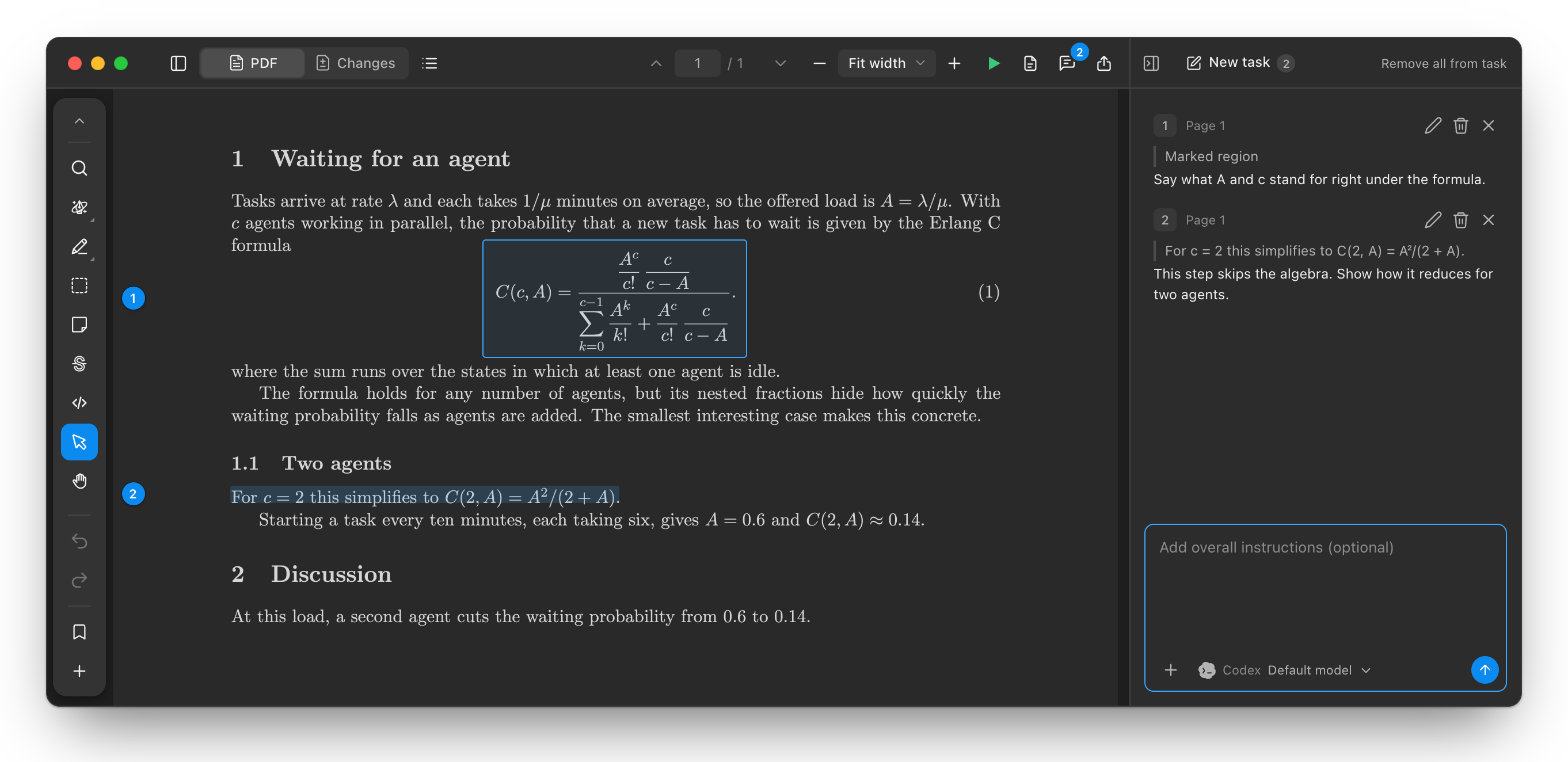
Open Manuscript to read your compiled paper. Papilot extracts exact word geometry from the PDF and pairs it with SyncTeX, so dragging over printed text selects whole words cleanly and maps every note back to the exact .tex file and line range — even in multi-file theses or equations where raw PDF text would be garbled.
Marking tools and shortcuts#
The Marking tools rail sits beside the PDF on desktop and floats along the bottom on phones (press the arrow or swipe down on a phone to collapse it; press Escape to return to Select):
| Tool | Shortcut | When to use it |
|---|---|---|
| Magic pen | Q | Drag over text or click a spot to apply a one-tap quick note (such as Polish, Shorten or Verify; customize presets in Settings → Quick notes, or press a number key to lock a preset). |
| Note | T | Drag across text and write a comment immediately. Click Note again to assign a color group (yellow, green, purple, orange, red). |
| Region | M | Draw a box around an equation, figure, algorithm or table that cannot be selected as plain words. |
| Sticky note | P | Click any spot on the page to leave a point comment anchored to the nearest line. |
| Delete | D | Strike through text you want removed; click the mark to optionally specify replacement wording. |
| Edit source | E | Click a passage on the manuscript PDF to open and edit its .tex lines directly without an agent. |
| Select | V | Copy text normally, or click Add note beside a selection. Hold Space with any tool (or press H on desktop) to pan. |
Organize and send notes#
- Shared
My noteslist: all saved annotations are stored on your Papilot host, shared across devices on the same server, and listed in My notes with their mapped LaTeX source. Sort them by Original order, PDF position or Newest first. - Quote single notes or whole sections: click the right arrow on any note to quote it into New task, or use Add to task in the My notes header to select all notes in a specific paper section (and its subsections) at once.
- Clear safely: Clear all annotations… (trash icon) clears unsent annotations on the active document with confirmation and one-click Undo.
Reading helpers#
- Peek at references: hover over an internal link (citation, equation, figure or section from
hyperref) for 400 ms, Option-click (Alt-click), or focus it with the keyboard to preview the referenced target in place without losing your scroll position. - Reading anchors: click + at the end of the tool rail (or press
Shift+B) to bookmark a passage; jump with numbered buttons or[and]. Anchors follow their.texsource even when edits move the passage to another page. - Crop margins: trim white page margins per device so two-column or wide margins fill narrow laptop or phone screens without altering your
.texgeometry.
AI review and agent-created notes#
- Read-only
/ai-review: run/ai-reviewin New task (with a read-only-capable agent such as Codex, Claude, GLM or Papilot Writer) to get short, line-anchored suggestions under AI suggestions without editing any files; click Keep on manuscript (bookmark icon) on any finding you want to keep as a manuscript note. - Antigravity can read the current review's PDF and its line-anchored text. If a command needs approval, ask Antigravity to continue using the supplied text, or switch agents in the review.
- Agent-placed annotations: ask an ordinary task to read external feedback (for example from a pasted referee report or
comments.txt) and place anchored annotations directly onto your manuscript PDF. - Voice notes (macOS): enable the optional Settings → Experiments → Typeless voice notes integration to trigger your configured Typeless dictation shortcut when creating a PDF note (Experimental Features).
Once your notes are quoted into a task and the agent finishes its turn, continue to Review & Save.