
Collaborate & syncOverleaf sync
Collaborate & sync
Overleaf Sync
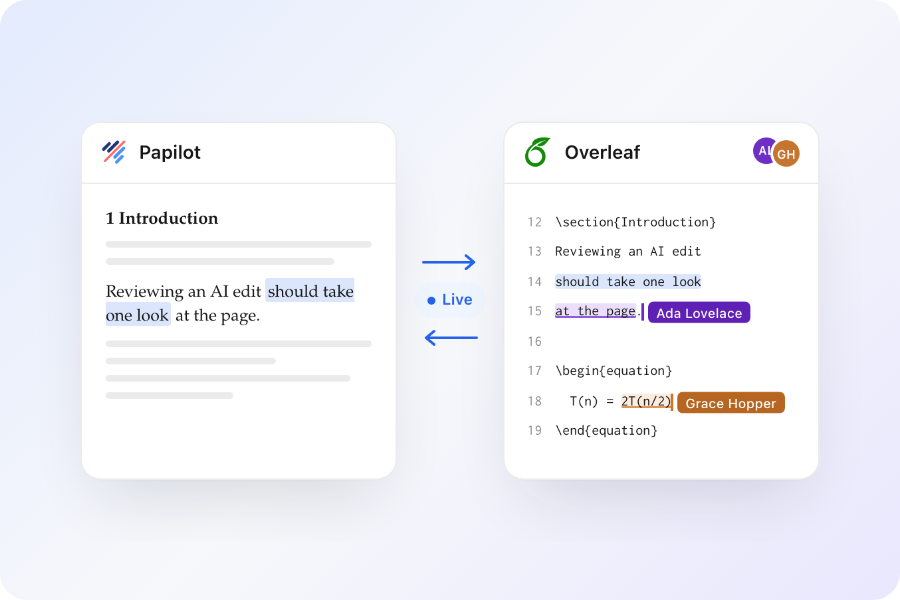
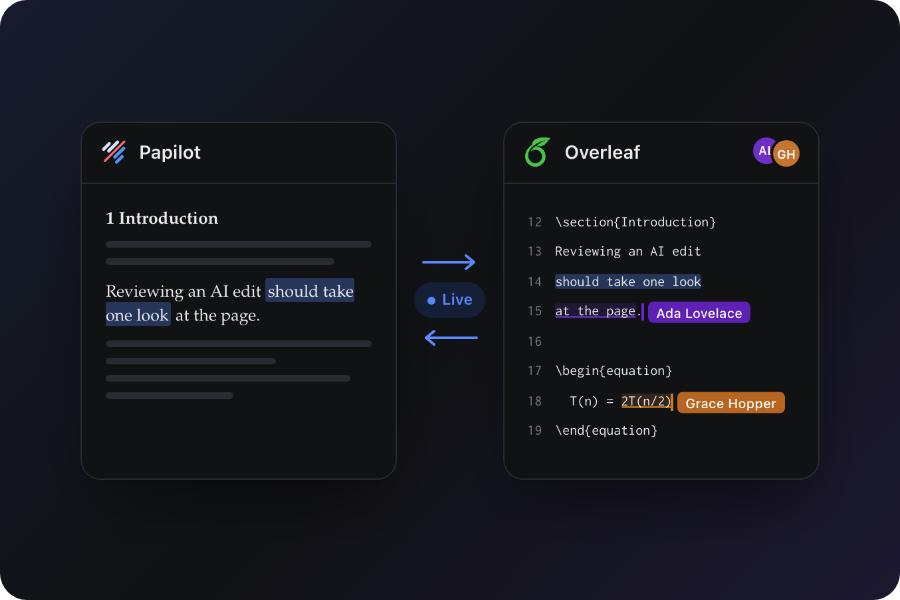
Choose between one-time snapshots and live two-way Overleaf sync (~1 s), see coauthor cursors and resolve offline conflicts cleanly.
Snapshot import versus live sync#
Papilot supports two ways to work with an Overleaf project — pick the one that matches whether coauthors are still editing on Overleaf:
| Mode | How to choose it | Sign-in needed? | What happens after import |
|---|---|---|---|
| One-time snapshot | Paste a read-only link (…/read/…), or turn Keep in sync with Overleaf off in Import or open | No (for enabled view links) | Downloads the current files once into an independent local copy. Future edits in Overleaf or Papilot stay separate. |
| Live two-way sync | Choose Sync with Overleaf, or paste an edit/project link (…/project/…) with Keep in sync with Overleaf on | Yes (free Overleaf account works; Overleaf Git add-on not required) | While Papilot is running, changes you Apply or Commit reach Overleaf in ~1 second, and coauthor edits arrive in your local files and PDF. |
Concrete example: if a colleague shares https://www.overleaf.com/read/abcd… so you can check math or draft suggested edits privately, import it as a snapshot. If you and two coauthors are writing a deadline submission together and they stay in Overleaf's browser editor, use live sync: your agent's unreviewed edits stay isolated in the task worktree until you accept and click Apply or Commit, at which point your coauthors see the accepted text in Overleaf within about a second.
Set up Overleaf sync#
- Sign in to Overleaf:
- Reuse an existing browser session on the Papilot host: choose Use the sign-in from Chrome (or Firefox/Edge/Brave/Arc/Vivaldi; macOS asks once for Keychain permission on Chromium browsers, while Firefox needs none).
- Desktop sign-in window: in the desktop app, click Sign in to overleaf.com to sign in with Google, ORCID, SSO or email in an isolated window — Papilot never sees your password.
- Remote browser or cookie: paste the
overleaf_session2(overleaf.sidon self-hosted servers) cookie shown by Where to find it, or choose Use another Overleaf server for institutional instances. Manage accounts anytime in Settings → Overleaf.
- Import a project or link an existing paper:
- New copy: paste the project URL in Sync with Overleaf (or Import or open with Keep in sync with Overleaf on).
- Existing local paper: open the paper menu at the top of the sidebar and choose Sync with Overleaf…. Papilot compares both sides first so you can choose Keep Overleaf's or Keep this paper's for any differing files without losing either version.
How live sync behaves day to day#
- Presence and attribution: an Overleaf row appears below Version Management with a status dot (green = synced, blue = sending, amber = offline or signed out) and coauthor initials. In the Source tab, coauthors' live cursors and text edited since your last commit appear in their color with their name and timestamp.
- What stays local:
.git, LaTeX build files (.aux,.log,.synctex.gz, generated PDFs/.bbl), secrets, new.gitignore-matched files, and files over 50 MB stay local (listed under unsynced files if skipped). - Offline edits and conflicts: after a disconnect or while Papilot was closed, Papilot three-way-merges line by line and character by character. If both sides edited the exact same words while offline, Overleaf's wording stays in place so coauthors are never silently overwritten, and the Overleaf panel highlights both versions with one-click Use mine or Keep Overleaf's. Stop syncing… unlinks the project and leaves all local files intact.