
Collaborate & syncGit & history
Collaborate & sync
Git and Version History
Inspect diffs, generate AI commit messages, sync with GitHub or GitLab, restore earlier versions and resolve merge conflicts.
Stage, commit and AI commit messages#
Select Version Management (the clock-rewind icon below Manuscript in the sidebar; Git tab on phones) to inspect diffs, stage files, commit, restore earlier versions or sync with a Git remote.
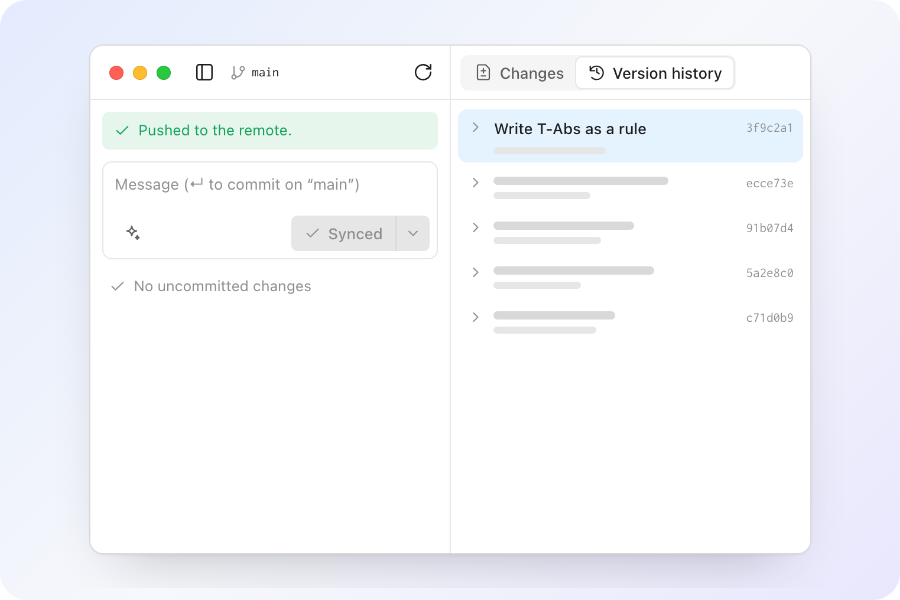
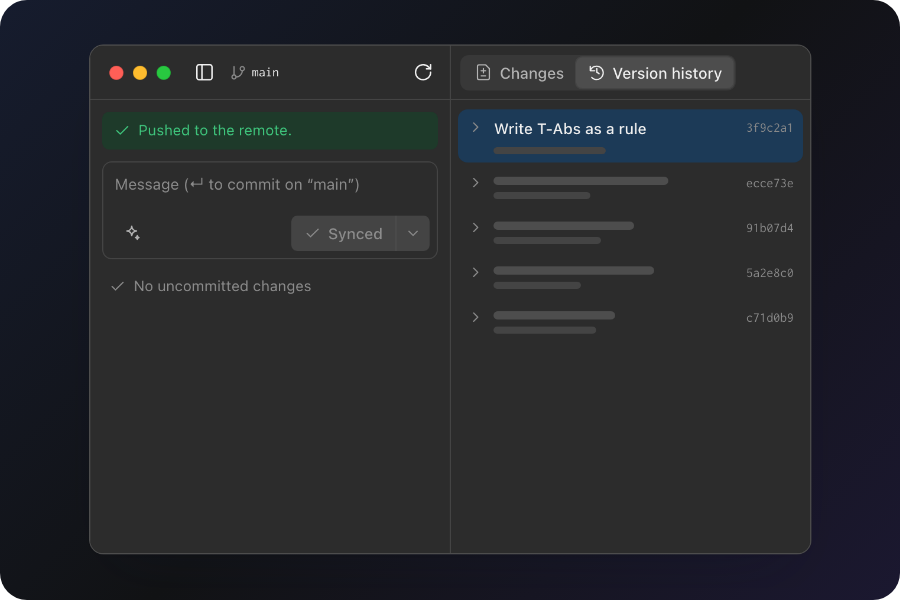
- Inspect and stage changes: click any file under Changes or Staged changes to read its line-numbered diff. Hover a row for + (stage), − (unstage) or discard.
- Clean manuscript commits: even with nothing staged, clicking Commit commits all modified manuscript files while automatically leaving out LaTeX build artifacts (
.aux,.log,.synctex.gz,_minted*,.DS_Store); use ⋯ → Add to .gitignore to record those patterns cleanly. - AI commit messages (
✨): click✨in the commit box to draft a commit message from the diff, task titles and recent commit style in one read-only turn. Configure the model in Settings → Git → Commit-message agent and the language (Auto or a fixed language) in Settings → Git → Commit message language.
Sync with a Git remote#
Neither Apply nor Commit inside a task review pushes to a remote repository automatically. Once changes are committed locally, the main button in Version Management becomes Sync:
- Clicking Sync fetches, merges or fast-forwards incoming commits and pushes your local commits using your host's Git credentials (SSH keys, credential helper or GitHub CLI).
- When both sides match, the button shows Synced. Open the dropdown beside it anytime for Commit and sync.
Version history and restore#
- Expand any commit under Version history to inspect which files changed in that snapshot.
- Choose Restore this version to create a new forward commit restoring that snapshot's contents — your existing commit history stays intact and never gets force-rewritten.
Advanced Git and merge conflicts#
Enable Settings → Git → Show advanced Git features to display extra controls in Version Management:
- Commit graph & Worktrees: view the branch/task commit graph and active task worktrees (stored under
~/.papilot/worktreesorPAPILOT_WORKTREESby default, overridable per paper in.git/papilot/settings.json). - Fine-grained Git actions: exposes Commit (Amend), Fetch, Pull / Merge and Push.
- Resolving merge conflicts (
!): if a merge stops with conflict markers, click Resolve with to let an agent reconcile the conflicted files for your review before Commit merge (configure a dedicated merge agent in Settings → Git → Conflict-resolution agent), or click Abort merge to return cleanly to the pre-merge state.