
Getting startedPapers & templates
Getting started
Papers and Templates
Open an existing LaTeX folder, import from arXiv, GitHub or ZIP, start from 400+ Papilot Universe templates and switch root documents.
Open or import a paper#
Click New paper or Import or open (the paper menu at the top of the sidebar lets you add and switch papers at any time). One dialog offers three tabs — Blank, Import or open and Templates — and preserves your typed name, save folder and link when switching tabs.
Choosing how to bring in a paper#
| Route | Where files live | Ongoing remote connection? | Best when… |
|---|---|---|---|
Open existing folder (File › Open Paper…, ⌘O / Ctrl+O) | Your original folder in place | Uses that folder's existing Git remote if any | You already have a local LaTeX repo (for example ~/papers/icml2027) and want edits written there |
Import a copy (folder, .zip, arXiv, GitHub, .tar.gz, or read-only Overleaf /read/…) | A new copy under Papilot's papers/ folder | No — one-time source snapshot | You want to experiment safely, read/revise an arXiv paper (https://arxiv.org/abs/1706.03762), or pull a snapshot without touching the original |
| Import Overleaf with sync (Keep in sync with Overleaf on) | A new copy under Papilot's papers/ folder | Yes — live two-way Overleaf sync while Papilot runs | Coauthors are actively editing in Overleaf and you want accepted changes exchanged in ~1 second (Overleaf Sync) |
Supported URLs and archive limits#
- Links and archives: supports arXiv abstract/PDF/HTML/e-print URLs (including explicit versions like
v2), Overleaf project and sharing links (/project/…and/read/…, keeping any#…fragment), public GitHub repository URLs (default branch snapshot; export private repos as ZIPs first), and public HTTPS.zip,.tarand.tar.gzarchives up to 64 MB and 5,000 extracted files. Local folder openings and local ZIP/folder uploads have no fixed file-count cap. - Remote browser picker: when opening Papilot in a browser on another device (such as a phone over Tailscale), Browse… lists non-hidden folders on the host computer so you can choose a save or paper folder without a desktop file dialog.
- If the initial build fails: the import dialog keeps your prepared files and offers main-file/engine selectors, Help fix compilation (using a connected agent, saved as uncommitted changes for inspection), Continue later and Add and fix later. See Troubleshooting.
Start from a Papilot Universe template#
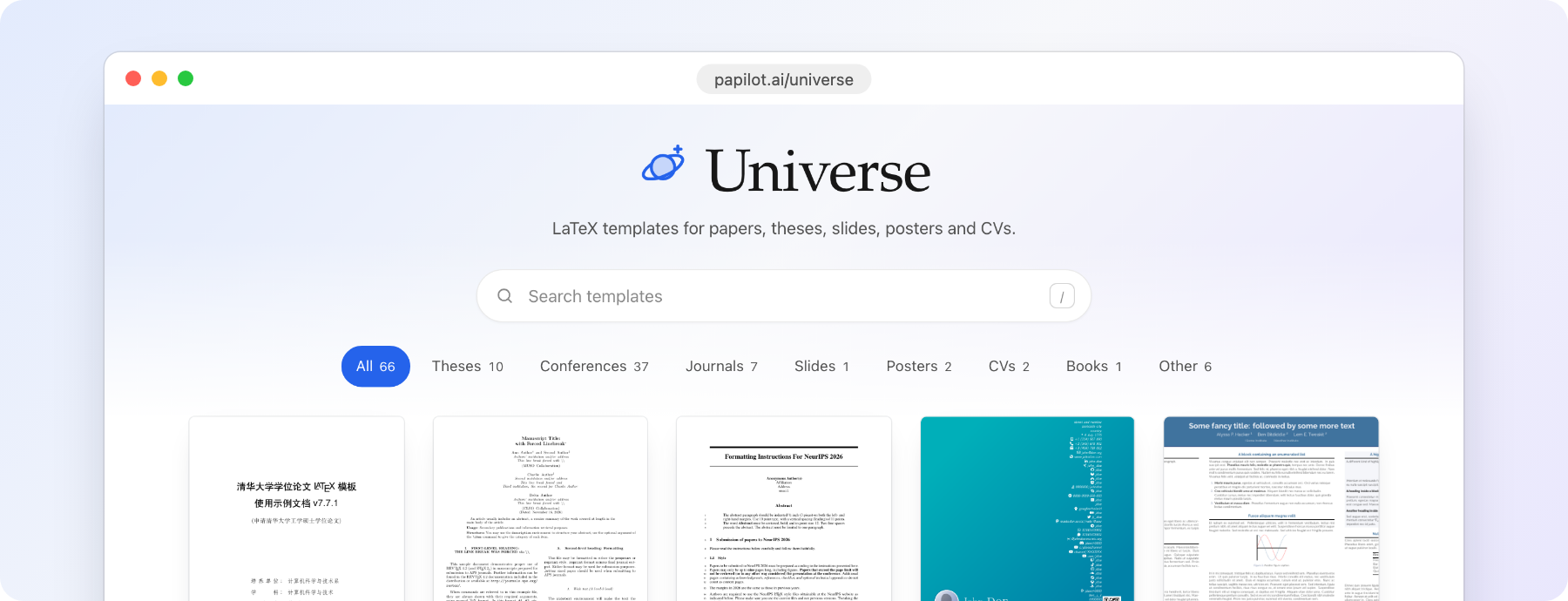
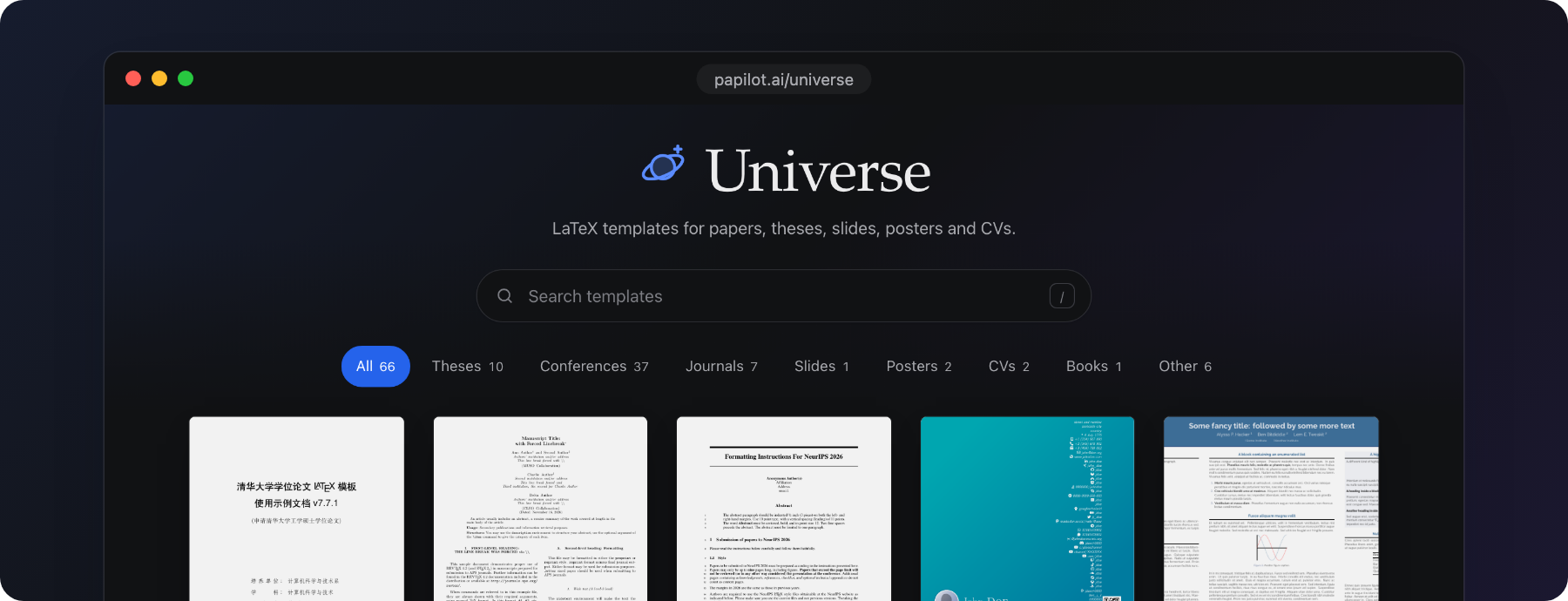
Open New paper → Templates (or browse papilot.ai/universe/ and click Open in Papilot on any template):
- Coverage: includes university theses, conference and journal author kits, slides, posters, CVs and books, and maps more than 400 conferences (with common AI venues such as NeurIPS, ICML, ICLR, CVPR and ACL listed first) to the exact author kit requested by their call for papers.
- Ready to compile: enter a Paper name and Save in parent folder, then click Create paper. Papilot downloads the selected template version, verifies its SHA-256 checksum, initializes local Git history without needing a GitHub account, sets the template's main
.texfile and LaTeX engine (pdfLaTeX,XeLaTeXorLuaLaTeX), and compiles the first PDF automatically. Existing folders are never overwritten. - Offline fallback: the built-in Example project and Blank document work completely offline; if the online catalog is unreachable, Retry preserves your typed name and folder.
Manage papers and multi-document repositories#
- Switch root
.texdocuments: in the sidebar, Manuscript shows the active root file (such asmain.tex). Click that filename to open Files: any.texfile with\documentclasshas a green play button (Compile this document) so you can switch between a paper, slides and a rebuttal letter in the same repository while keeping separate build settings and PDF reading positions per document. - Rename, relocate or remove a paper: open the paper menu at the top of the sidebar and click the pencil icon beside a paper. Remove paper deletes only Papilot's task records, conversations and notes; your
.texfiles, Git commits and worktrees on disk are never deleted.